

Endpoint URL, one API Key, and fetch model lists from /v1/models.
Why There Are Two Integration Modes
Many users seeApp-specific Provider and Universal Provider for the first time and assume they are two different HaiToken protocols. They are not.
The core fields are exactly the same in both entries:
Endpoint URLAPI KeyModel
App-specific Provider: only for the current appUniversal Provider: shared across multiple apps
OpenClaw or OpenCode, start with App-specific Provider. It is easier to debug.
Switch to Universal Provider only after you already know the HaiToken configuration works and you want to reuse it across multiple apps.
Good Fits
- You already use CC Switch to manage tools such as OpenCode, OpenClaw, or Codex
- You want HaiToken to act as the shared model entry point
- You want to switch Providers in a GUI and fetch model lists directly
What You Need
- A HaiToken API key
- HaiToken gateway URL:
https://api.haitoken.ai - At least one available model ID, such as
deepseek-v4-flash
In CC Switch, the recommended
Endpoint URL is the gateway prefix https://api.haitoken.ai, not the full path https://api.haitoken.ai/v1/chat/completions. In the default mode, CC Switch appends /v1/chat/completions and /v1/models for you.Mode 1: Use It Only for the Current App
This corresponds toApp-specific Provider in CC Switch. It only affects the current app and is the best choice when you want to verify one tool first.
Step 1: Open the target app page
After starting CC Switch, switch to the app you want to connect, such as:- OpenCode
- OpenClaw
- Codex
Step 2: Add a Provider
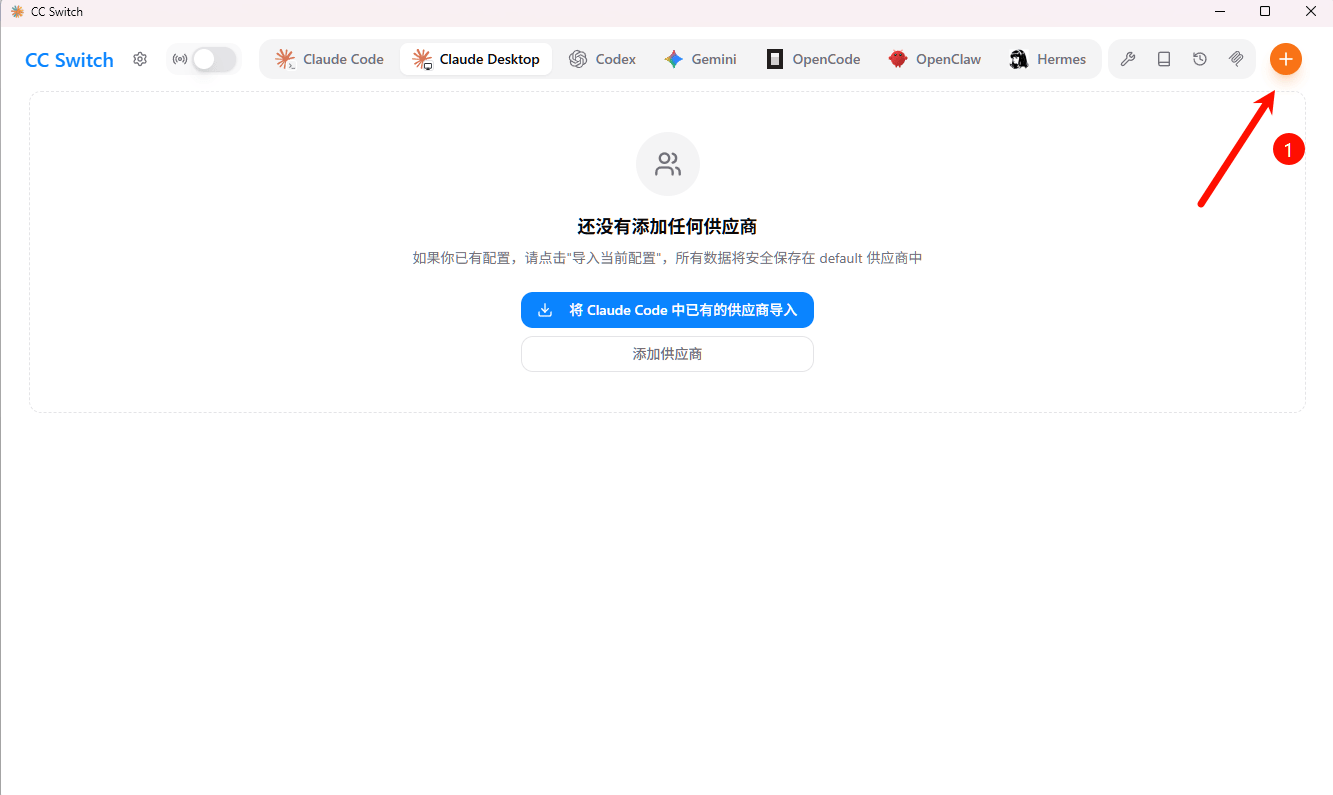
Click+ in the top-right corner to open the Add Provider panel.
You will see two entries:
App-specific Provider: only affects the current appUniversal Provider: reuses one configuration across multiple apps
App-specific Provider.
Step 3: Enter the HaiToken configuration
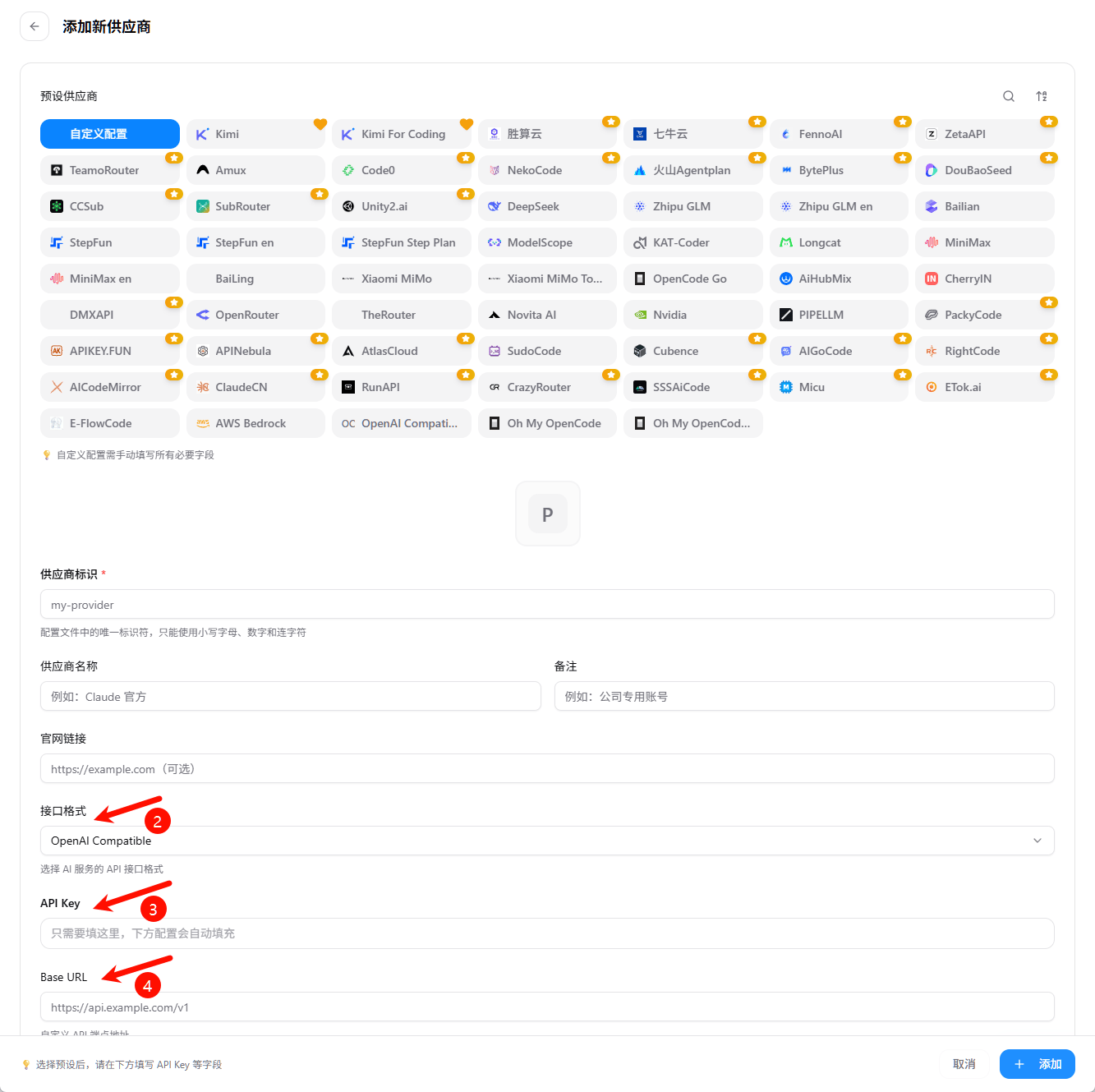
If the current app offers anOpenAI Compatible or Custom preset, choose it directly.
| Field | Recommended value |
|---|---|
| Name | HaiToken |
| Endpoint URL / API Base URL | https://api.haitoken.ai |
| API Key | Your HaiToken API key |
| Model | For example deepseek-v4-flash |
Fetch Models, click it once so CC Switch can load model IDs from HaiToken /v1/models.
Step 4: Save and activate
ClickAdd or Save, then switch HaiToken to the active Provider.
If your target app is OpenCode, OpenClaw, or Codex, it is safer to restart that tool once after switching Providers.
Checklist
- You can see models returned by HaiToken in the model picker or via
Fetch Models. - The target tool no longer shows auth failures or missing-model errors after switching to
HaiToken. - A simple test prompt such as
hireturns a normal response.
OpenClaw, also confirm that routing is enabled where needed.
FAQ
404 when fetching models
First check whetherEndpoint URL was entered as https://api.haitoken.ai/v1. For CC Switch, the recommended value is the gateway prefix https://api.haitoken.ai.
The Provider is saved but the target tool still does not use it
Make sureHaiToken is the active Provider, then fully close and reopen the target tool.
If the target tool is OpenClaw, also check whether the matching route has been enabled.
The connection works but the model list is empty
Check which models your API key can see:Fetch Models again.
Can I use the full endpoint URL?
Only if you explicitly enabledFull URL Mode in CC Switch. For the standard HaiToken flow, you do not need that mode.
Mode 2: Share One Provider Across Multiple Apps
This corresponds toUniversal Provider in CC Switch. Use it when you want one HaiToken configuration to be reused across multiple apps.
Good fits
- You manage multiple tools in CC Switch
- You do not want to re-enter the same endpoint and API key for every tool
- You want several apps to reuse the same model source as much as possible
Step 1: Open the Add Provider panel
Click+ in the top-right corner.
Step 2: Choose Universal Provider
Select Universal Provider so the configuration can be reused by multiple apps.
Step 3: Enter the HaiToken configuration
Use the same values as theApp-specific Provider flow:
| Field | Recommended value |
|---|---|
| Name | HaiToken |
| Endpoint URL / API Base URL | https://api.haitoken.ai |
| API Key | Your HaiToken API key |
| Model | For example deepseek-v4-flash |
Fetch Models is available, run it once here as well.
Step 4: Verify in each target app
After saving, switch between the apps you want to use and confirm that each of them can see and use the same HaiToken configuration.Checklist
- The target apps can read the
HaiTokenProvider - At least one target app can send a normal request and get a normal response
- Switching models does not trigger auth failures or missing-model errors
The actual coverage of
Universal Provider can vary between versions. If one app still does not read the shared configuration, fall back to App-specific Provider for that app.Key Configuration Notes
What should Endpoint URL be?
Recommended:
base_url is treated as a prefix and fixed paths are appended automatically. If you include /v1 or the full endpoint yourself, the final request path may be duplicated.
How is the API key sent?
HaiToken uses OpenAI-compatible Bearer authentication:How should I select the model?
You have two options:- Enter the model ID manually
- Use
Fetch Modelsto load model IDs from/v1/models
When Routing Must Be Enabled
In CC Switch, the answer to whetherRouting / Local Routing must be enabled is not the same for every tool. Use the following rule of thumb.
Cases that clearly require routing
Codex using Chat Completions or non-GPT models
If your Codex upstream uses OpenAI Chat Completions, or if you are using third-party models that Codex does not natively assume, such asDeepSeek, Kimi, GLM, or MiniMax, routing should be enabled.
This is because CC Switch usually needs local protocol conversion, model mapping, or request forwarding in those cases.
Claude / Claude Code / Claude Desktop using non-default protocol formats
If you configure Claude-family tools with:OpenAI Chat CompletionsOpenAI Responses API
Cases where routing should be checked first
OpenClaw: confirm routing in 3 steps
If your target tool isOpenClaw, check routing in this order:
- Confirm the
HaiTokenProvider was saved and activated. - Confirm the OpenClaw-related Routing setting is enabled.
- Send another test request and confirm traffic really goes through HaiToken.
- The Provider is saved successfully
- The model list can still be fetched
- But real requests do not go through HaiToken as expected
- Or switching Providers still does not seem to affect OpenClaw
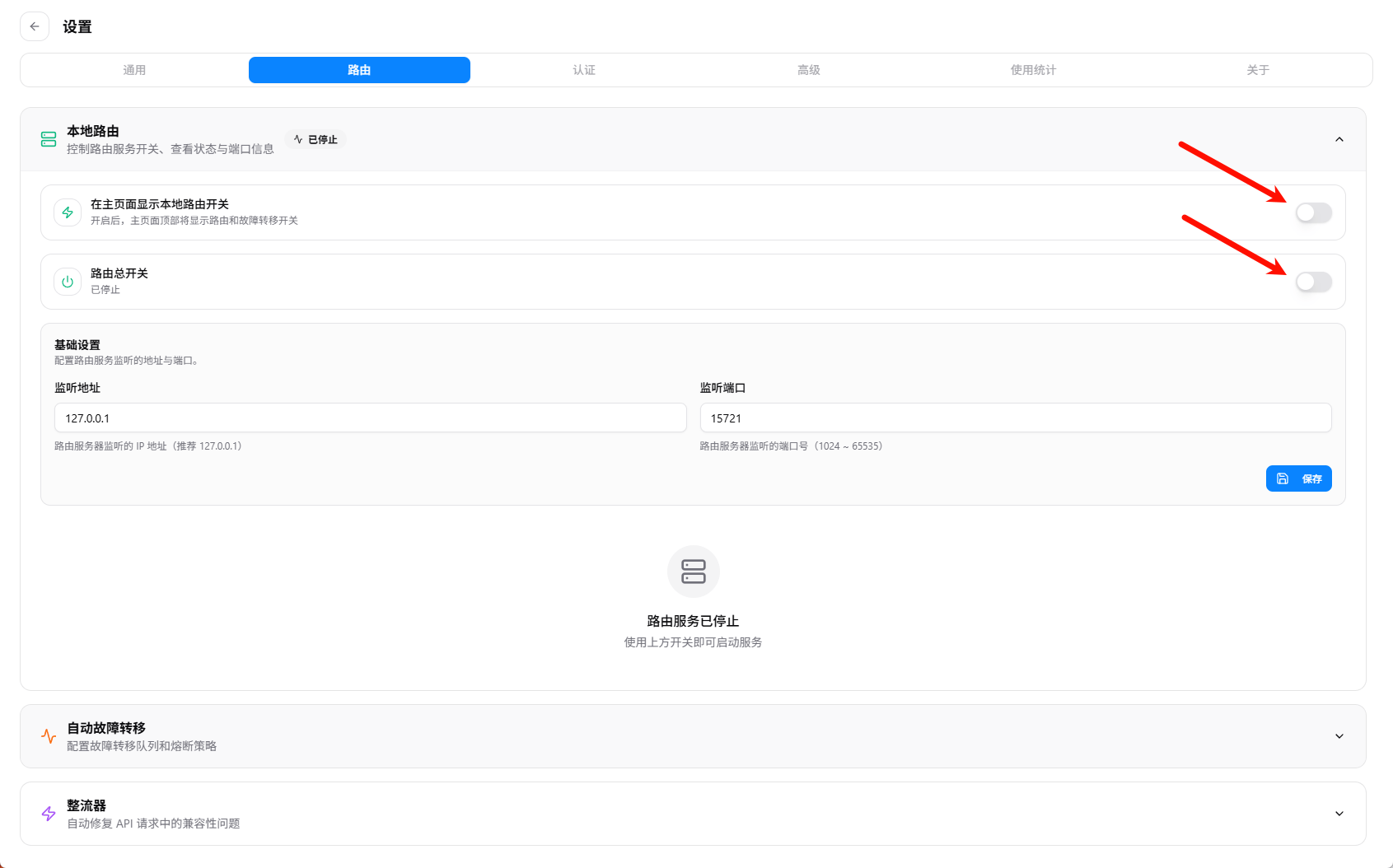
HaiToken Provider and before sending your next test request.
Cases that should not be documented as always requiring routing
For tools such asOpenCode, Gemini, or Hermes, if you are already using a standard compatible flow, the docs should not claim that routing is always mandatory. Use the current UI, Provider type, and actual request behavior as your real source of truth.
Next
- See Get API Key
- See OpenAI format API
- See List models