> ## Documentation Index
> Fetch the complete documentation index at: https://docs.haitoken.ai/llms.txt
> Use this file to discover all available pages before exploring further.
# DeepChat
> 通过 HaiToken 网关接入 DeepChat
DeepChat 是一款开源的本地优先 AI 桌面客户端,支持通过自定义服务商接入兼容 `OpenAI`、`Gemini`、`Anthropic` 协议的模型服务。对 HaiToken 来说,`OpenAI` 模式通常最稳、兼容性最好;如果你明确需要走 Claude / Anthropic 生态,也可以改用 `Anthropic` 模式。
## 先准备好这些信息
* HaiToken API Key
* HaiToken OpenAI 兼容地址:`https://api.haitoken.ai/v1`
* HaiToken Claude / Anthropic 兼容地址:`https://api.haitoken.ai`
* 至少一个可用模型 ID,例如 `deepseek-v4-flash`
DeepChat 的配置全程通过图形界面完成,Windows、macOS、Linux 的操作步骤基本一致。不同系统下若菜单位置或窗口样式略有差异,请以实际 UI 为准,但 API Key、API 地址和模型 ID 的填写逻辑不变。
## 接入步骤
### 先选哪种协议
在 DeepChat 中,常见有两种接法:
* `OpenAI` / `OpenAI Completions`:更推荐,兼容面更广,当前文档主流程也按这条路径来写
* `Anthropic` / `Claude`:也很常用,适合你希望按 Claude / Messages 生态去接入的场景
如果你没有明确理由,建议优先选 `OpenAI`。
### 步骤 1:打开设置
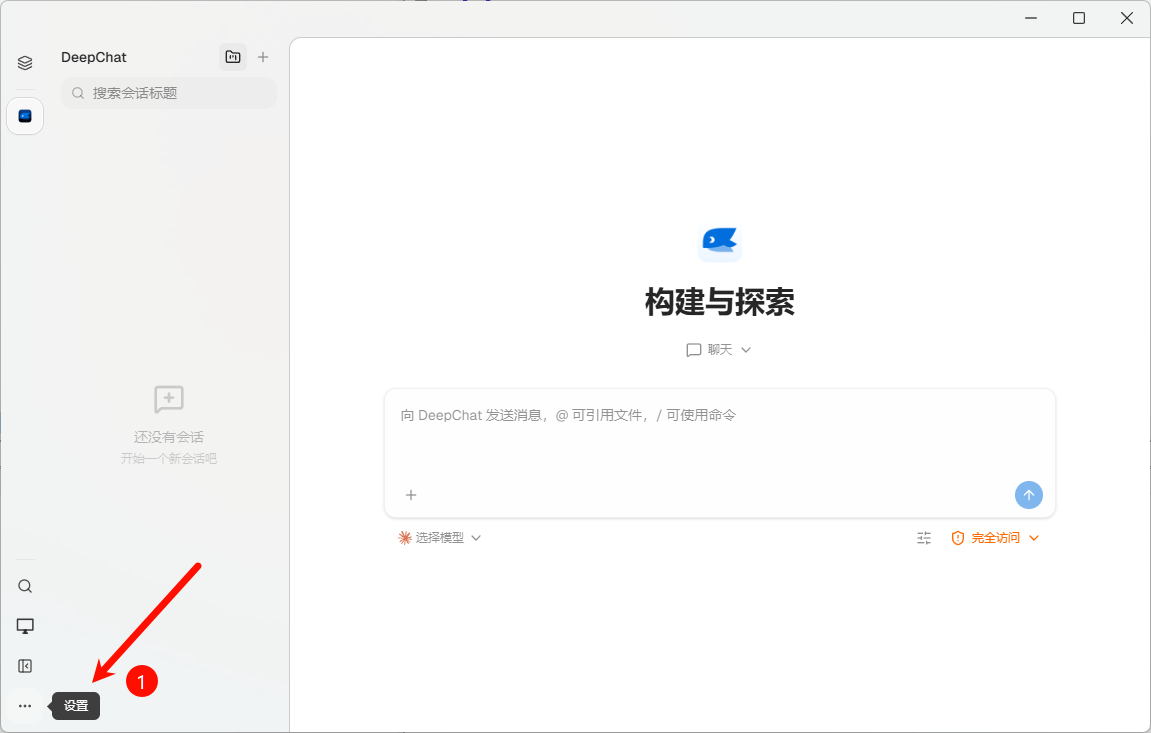
在 DeepChat 主界面左侧边栏底部,点击 **`...`** 按钮展开菜单,选择 **设置**。
 ### 步骤 2:进入服务商设置
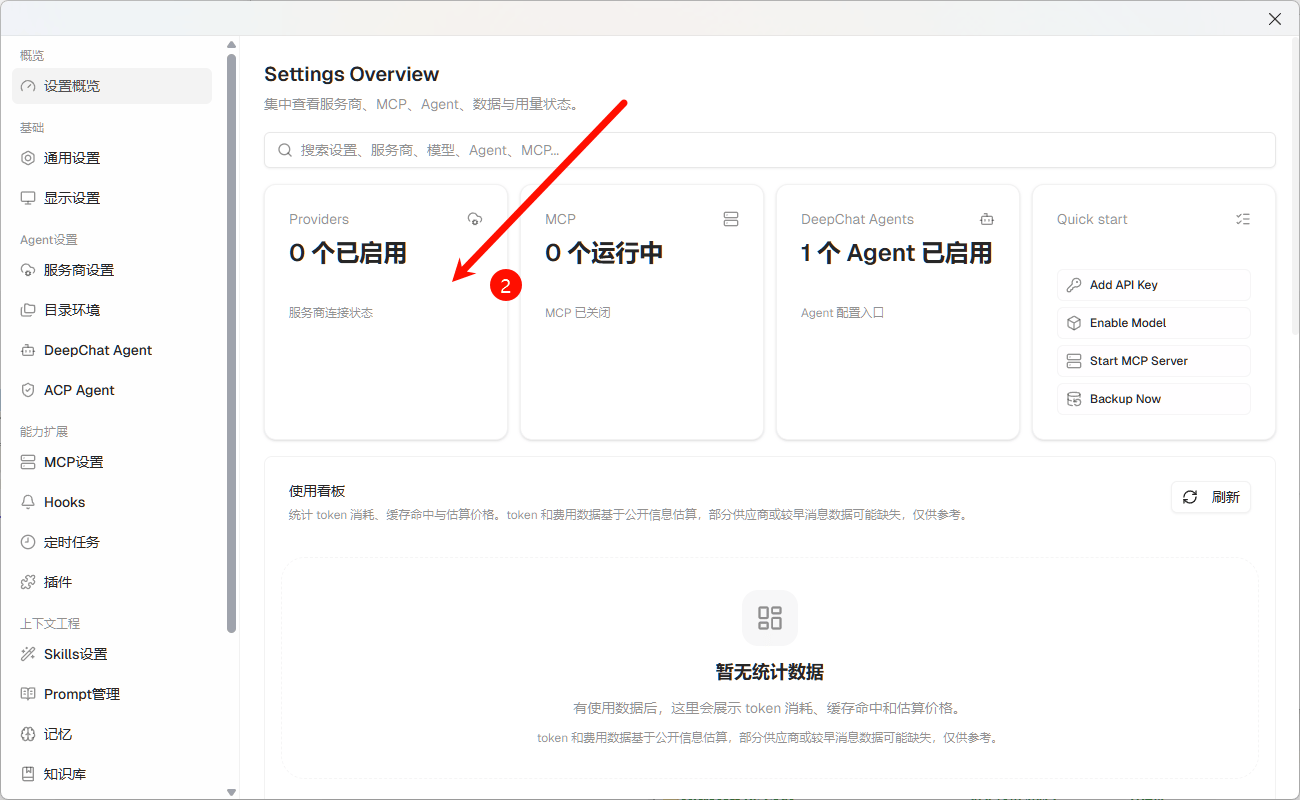
在设置概览页面,找到 **Providers** 卡片,点击进入服务商设置页面。
### 步骤 2:进入服务商设置
在设置概览页面,找到 **Providers** 卡片,点击进入服务商设置页面。
 ### 步骤 3:添加自定义服务商
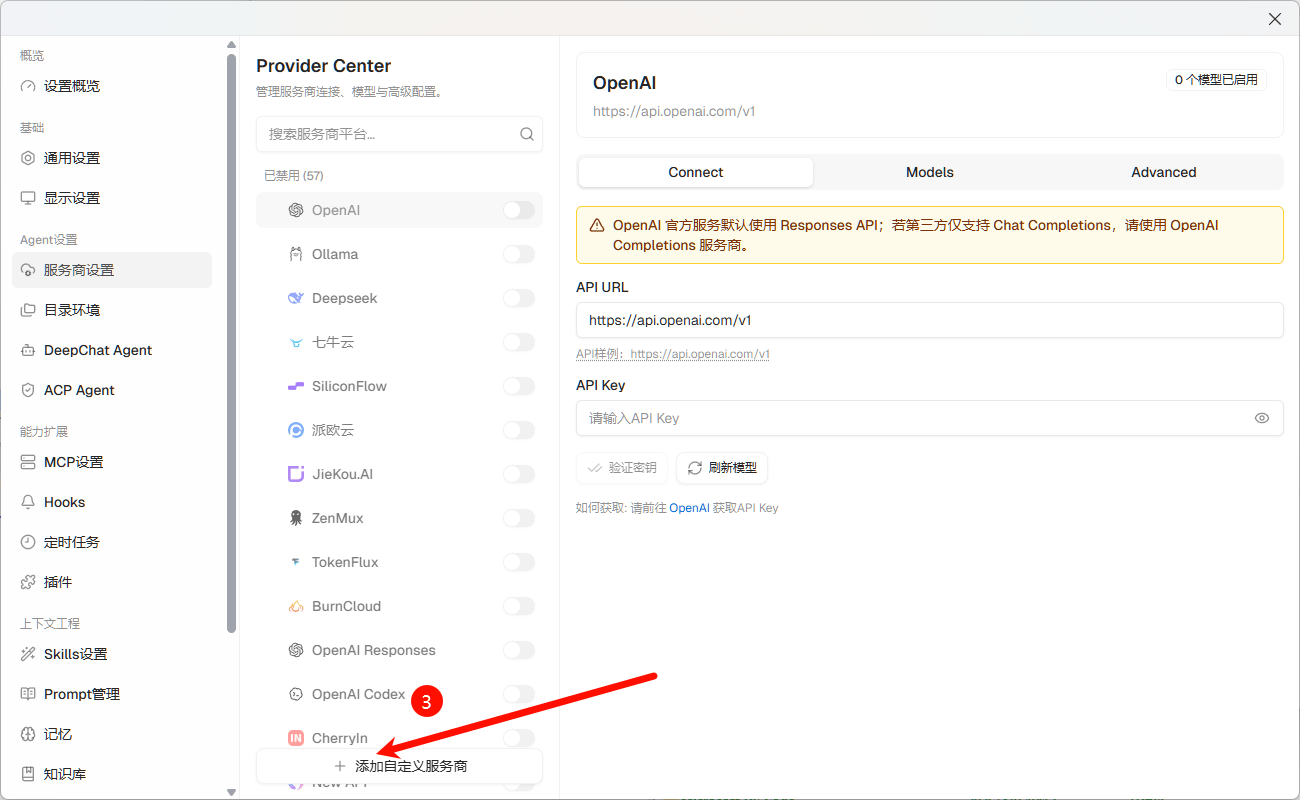
在服务商列表底部,点击 **+ 添加自定义服务商** 按钮。
### 步骤 3:添加自定义服务商
在服务商列表底部,点击 **+ 添加自定义服务商** 按钮。
 ### 步骤 4:填写 HaiToken 配置
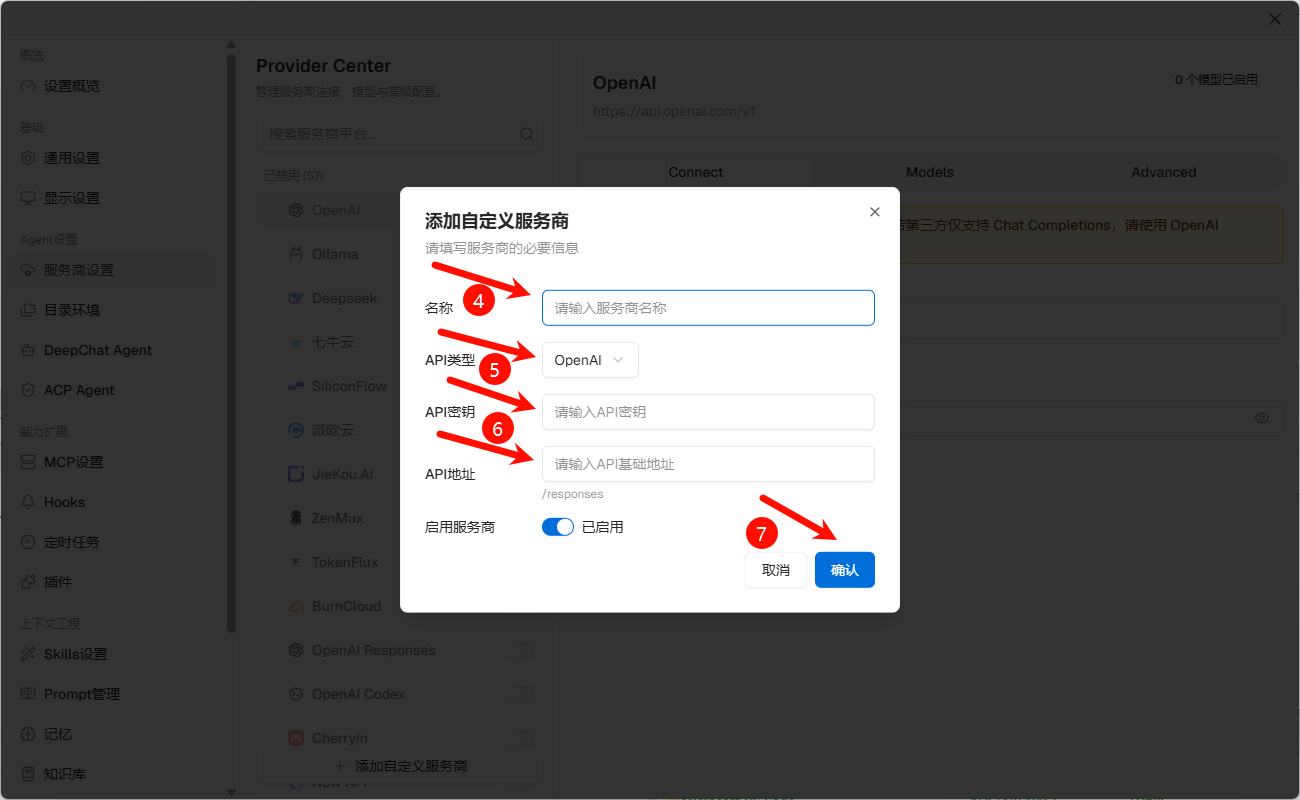
在弹出的对话框中,按以下信息填写:
| 字段 | 填写值 |
| ----- | ----------------------------------------------------------------------------------- |
| 名称 | `haitoken`(可自定义) |
| API类型 | 推荐 `OpenAI`;如需 Claude 生态可选 `Anthropic` |
| API密钥 | 你的 HaiToken API Key |
| API地址 | `OpenAI` 模式填 `https://api.haitoken.ai/v1`;`Anthropic` 模式填 `https://api.haitoken.ai` |
填写完成后,确认底部 **启用服务商** 开关已打开,点击 **确认** 保存。
如果 API 类型选择 `OpenAI` 后,API 地址下方出现 `/responses` 后缀提示,说明当前使用的是 Responses API 路径。HaiToken 兼容的是 Chat Completions 路径(`/v1/chat/completions`),此时请在 API 类型下拉框中选择使用 Chat Completions 的选项(如 `OpenAI Completions`),确保请求路径正确。
如果你选择的是 `Anthropic` / `Claude` 模式,请不要把地址写成 `https://api.haitoken.ai/v1`。这一条路径应当填写 Anthropic 风格的网关前缀 `https://api.haitoken.ai`,由客户端去请求 `/v1/messages`。
### 步骤 4:填写 HaiToken 配置
在弹出的对话框中,按以下信息填写:
| 字段 | 填写值 |
| ----- | ----------------------------------------------------------------------------------- |
| 名称 | `haitoken`(可自定义) |
| API类型 | 推荐 `OpenAI`;如需 Claude 生态可选 `Anthropic` |
| API密钥 | 你的 HaiToken API Key |
| API地址 | `OpenAI` 模式填 `https://api.haitoken.ai/v1`;`Anthropic` 模式填 `https://api.haitoken.ai` |
填写完成后,确认底部 **启用服务商** 开关已打开,点击 **确认** 保存。
如果 API 类型选择 `OpenAI` 后,API 地址下方出现 `/responses` 后缀提示,说明当前使用的是 Responses API 路径。HaiToken 兼容的是 Chat Completions 路径(`/v1/chat/completions`),此时请在 API 类型下拉框中选择使用 Chat Completions 的选项(如 `OpenAI Completions`),确保请求路径正确。
如果你选择的是 `Anthropic` / `Claude` 模式,请不要把地址写成 `https://api.haitoken.ai/v1`。这一条路径应当填写 Anthropic 风格的网关前缀 `https://api.haitoken.ai`,由客户端去请求 `/v1/messages`。
 ### 步骤 5:刷新并启用模型
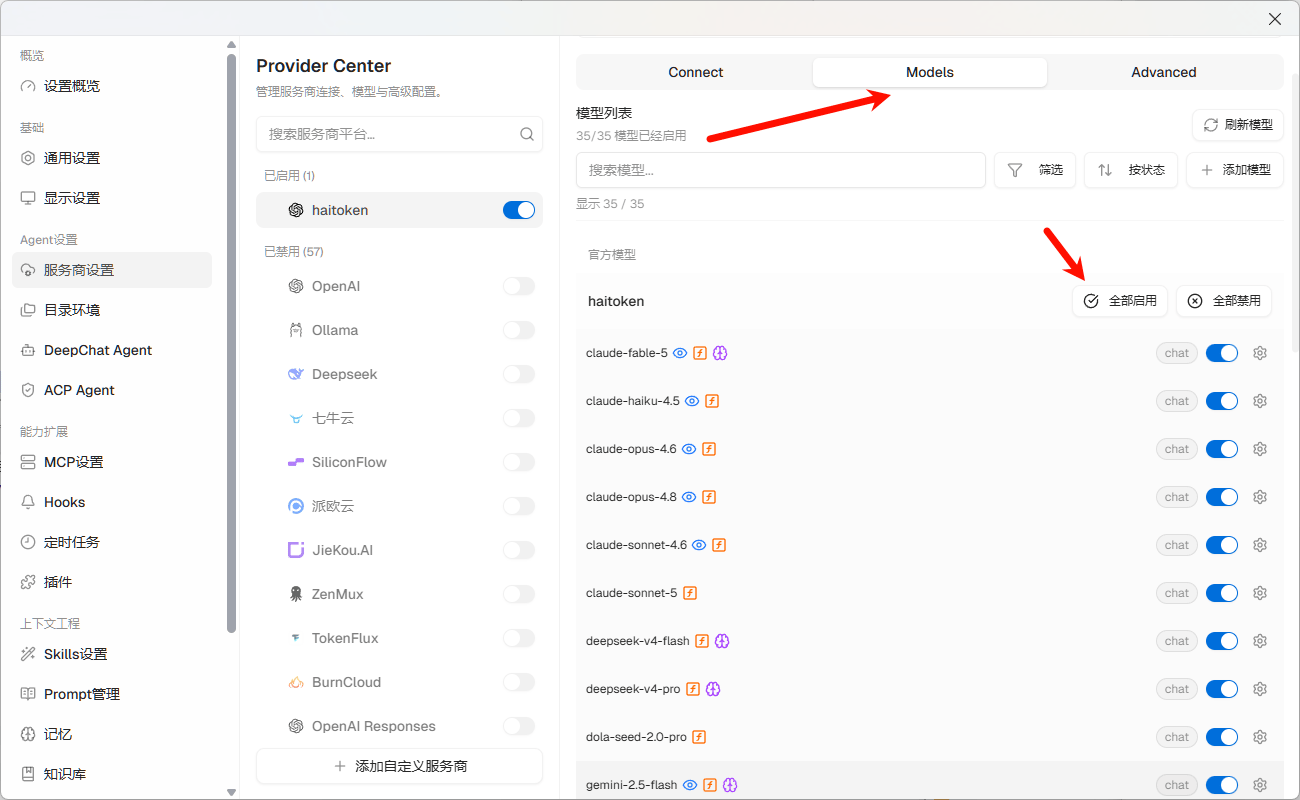
保存后,在服务商详情页切换到 **Models** 标签页,点击 **刷新模型** 拉取 HaiToken 可用模型列表。拉取成功后,点击 **全部启用** 或按需开启特定模型。
### 步骤 5:刷新并启用模型
保存后,在服务商详情页切换到 **Models** 标签页,点击 **刷新模型** 拉取 HaiToken 可用模型列表。拉取成功后,点击 **全部启用** 或按需开启特定模型。
 ### 步骤 6:返回对话界面测试
回到聊天界面,在底部模型选择器中切换到刚配置的 HaiToken 模型,发送一条简单消息(如 `hello`)验证连通性。
## 补充说明
| 项目 | 说明 |
| ----------- | ------------------------------------ |
| 推荐协议 | OpenAI Chat Completions |
| 常见请求路径 | `POST /v1/chat/completions` |
| Claude 兼容路径 | `POST /v1/messages` |
| 鉴权头 | `Authorization: Bearer YOUR_API_KEY` |
| 模型切换 | 在 DeepChat 对话界面通过模型选择器切换 |
如果你还需要配置温度、最大输出长度、系统提示词等高级参数,第一次接入时建议先保留默认值,优先确认连通性。
## 常见问题
| 问题 | 解决方案 |
| ------------------------- | ------------------------------------------------------------------------------------------------------------------------------------------- |
| 模型列表拉取成功但调用失败 | 检查 API 类型是否使用了 Responses API(URL 后缀显示 `/responses`)。HaiToken 兼容 Chat Completions,请在 API 类型中选择 `OpenAI Completions` 或类似选项。 |
| 提示接口地址错误 | 确认 API 地址填写的是 `https://api.haitoken.ai/v1`,不要多加 `/chat/completions` 后缀,DeepChat 会自动拼接路径。 |
| 我想走 Claude / Anthropic 模式 | 把 API 类型切到 `Anthropic` 或对应的 Claude 模式,并把 API 地址改成 `https://api.haitoken.ai`,不要再带 `/v1`。这一条路径会按 Anthropic Messages 协议请求 `POST /v1/messages`。 |
| 提示 `401` 或鉴权失败 | 请确认 API Key 有效,并确认 DeepChat 当前使用的是 OpenAI 兼容 Bearer 鉴权。 |
| 提示 `model not found` | 请确认 DeepChat 中填写的模型 ID 与 HaiToken 实际暴露的模型 ID 完全一致。 |
| 刷新模型后列表为空 | 检查 API Key 是否正确、服务商是否已启用,以及网络是否能访问 `https://api.haitoken.ai/v1`。 |
## 下一步
* 查看 [获取 API Key](/docs/zh/quickstart/get-api-key)
* 查看 [OpenAI 格式 API 文档](/docs/zh/api-reference/chat/openai-format)
* 查看 [模型列表](/docs/zh/api-reference/models/list-models)
### 步骤 6:返回对话界面测试
回到聊天界面,在底部模型选择器中切换到刚配置的 HaiToken 模型,发送一条简单消息(如 `hello`)验证连通性。
## 补充说明
| 项目 | 说明 |
| ----------- | ------------------------------------ |
| 推荐协议 | OpenAI Chat Completions |
| 常见请求路径 | `POST /v1/chat/completions` |
| Claude 兼容路径 | `POST /v1/messages` |
| 鉴权头 | `Authorization: Bearer YOUR_API_KEY` |
| 模型切换 | 在 DeepChat 对话界面通过模型选择器切换 |
如果你还需要配置温度、最大输出长度、系统提示词等高级参数,第一次接入时建议先保留默认值,优先确认连通性。
## 常见问题
| 问题 | 解决方案 |
| ------------------------- | ------------------------------------------------------------------------------------------------------------------------------------------- |
| 模型列表拉取成功但调用失败 | 检查 API 类型是否使用了 Responses API(URL 后缀显示 `/responses`)。HaiToken 兼容 Chat Completions,请在 API 类型中选择 `OpenAI Completions` 或类似选项。 |
| 提示接口地址错误 | 确认 API 地址填写的是 `https://api.haitoken.ai/v1`,不要多加 `/chat/completions` 后缀,DeepChat 会自动拼接路径。 |
| 我想走 Claude / Anthropic 模式 | 把 API 类型切到 `Anthropic` 或对应的 Claude 模式,并把 API 地址改成 `https://api.haitoken.ai`,不要再带 `/v1`。这一条路径会按 Anthropic Messages 协议请求 `POST /v1/messages`。 |
| 提示 `401` 或鉴权失败 | 请确认 API Key 有效,并确认 DeepChat 当前使用的是 OpenAI 兼容 Bearer 鉴权。 |
| 提示 `model not found` | 请确认 DeepChat 中填写的模型 ID 与 HaiToken 实际暴露的模型 ID 完全一致。 |
| 刷新模型后列表为空 | 检查 API Key 是否正确、服务商是否已启用,以及网络是否能访问 `https://api.haitoken.ai/v1`。 |
## 下一步
* 查看 [获取 API Key](/docs/zh/quickstart/get-api-key)
* 查看 [OpenAI 格式 API 文档](/docs/zh/api-reference/chat/openai-format)
* 查看 [模型列表](/docs/zh/api-reference/models/list-models)