> ## Documentation Index
> Fetch the complete documentation index at: https://docs.haitoken.ai/llms.txt
> Use this file to discover all available pages before exploring further.
# VS Code
> Connect VS Code Copilot Chat to HaiToken via BYOK
VS Code supports adding custom models to Copilot Chat through the built-in language model management. After setup, you can use HaiToken models directly in the VS Code Chat panel.
## Protocol Note
VS Code's custom model (Custom Endpoint) path is compatible with the OpenAI Chat Completions protocol. This guide uses the Custom Endpoint mode with API Type `chat-completions` and the full request URL `https://api.haitoken.ai/v1/chat/completions`.
## What you need
* VS Code with GitHub Copilot enabled
* A HaiToken API key
* At least one available model ID, such as `gpt-5.4`
* HaiToken full request URL: `https://api.haitoken.ai/v1/chat/completions`
## Setup Steps
### Step 1: Open language model management
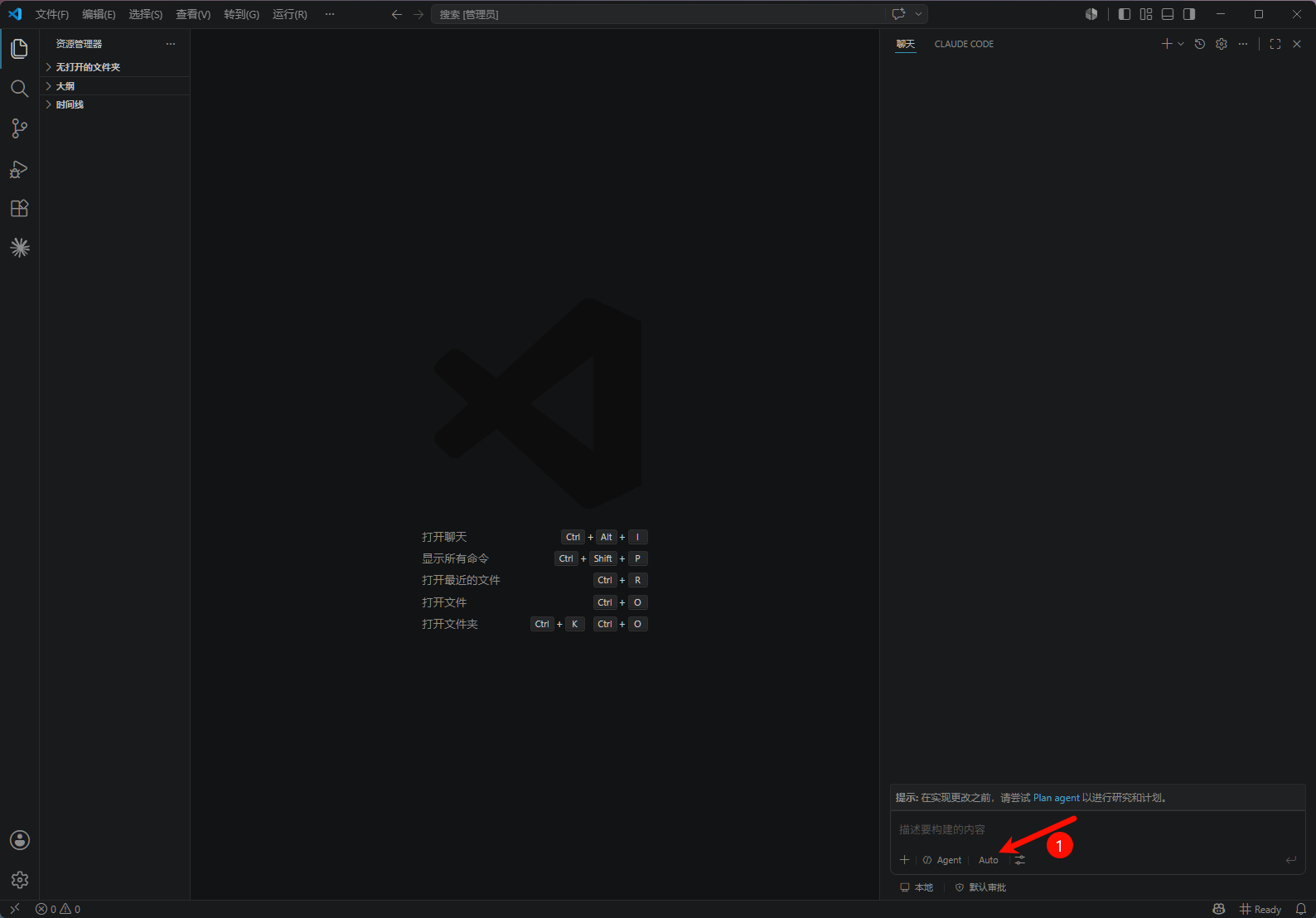
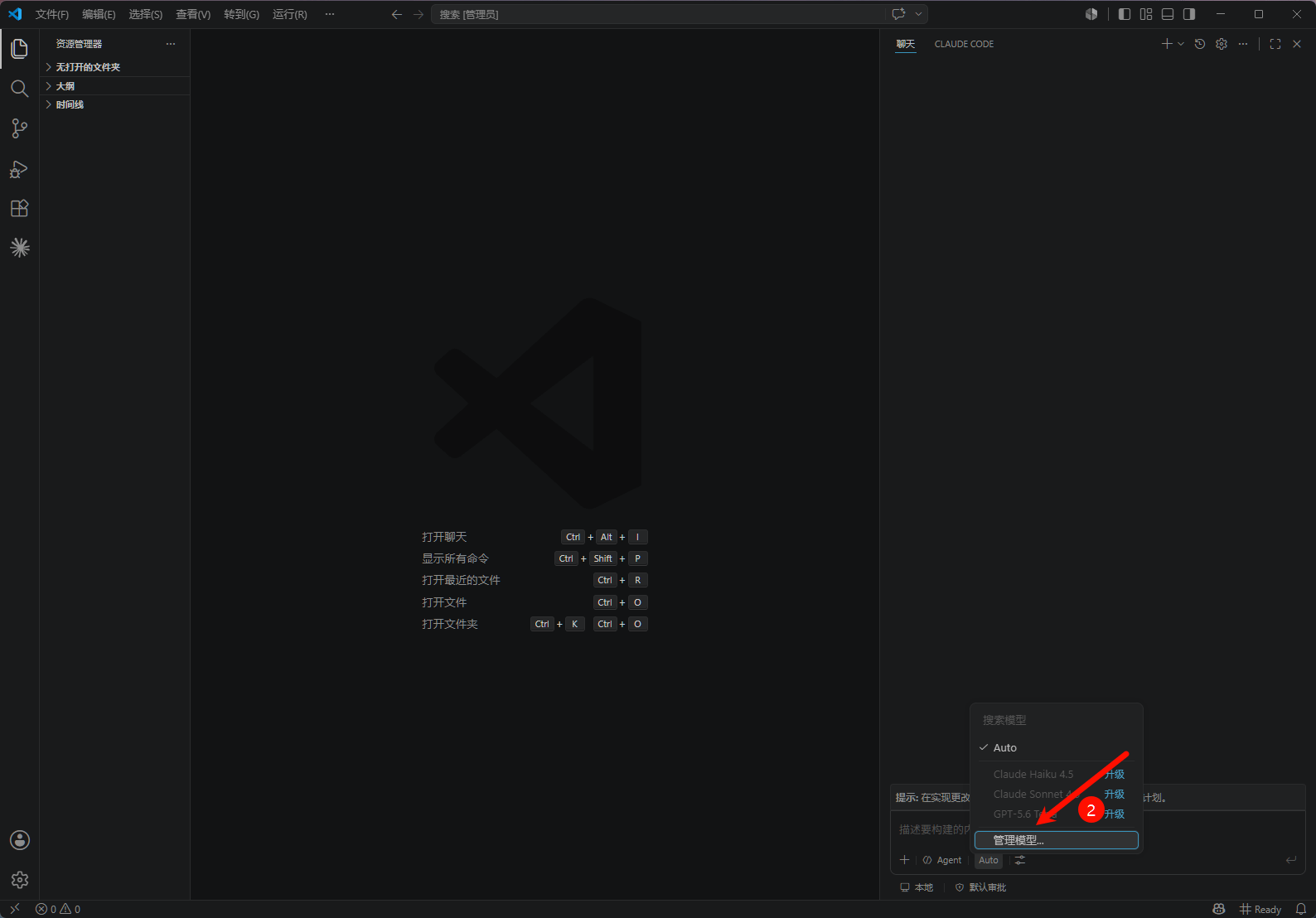
In the VS Code Chat panel, click the model picker next to the input box (shown as Auto by default) and select "Manage Language Models" from the dropdown.
You can also open the Command Palette (`Ctrl+Shift+P` / `Cmd+Shift+P`) and run **Chat: Manage Language Models**.
 ### Step 2: Add a Custom Endpoint model
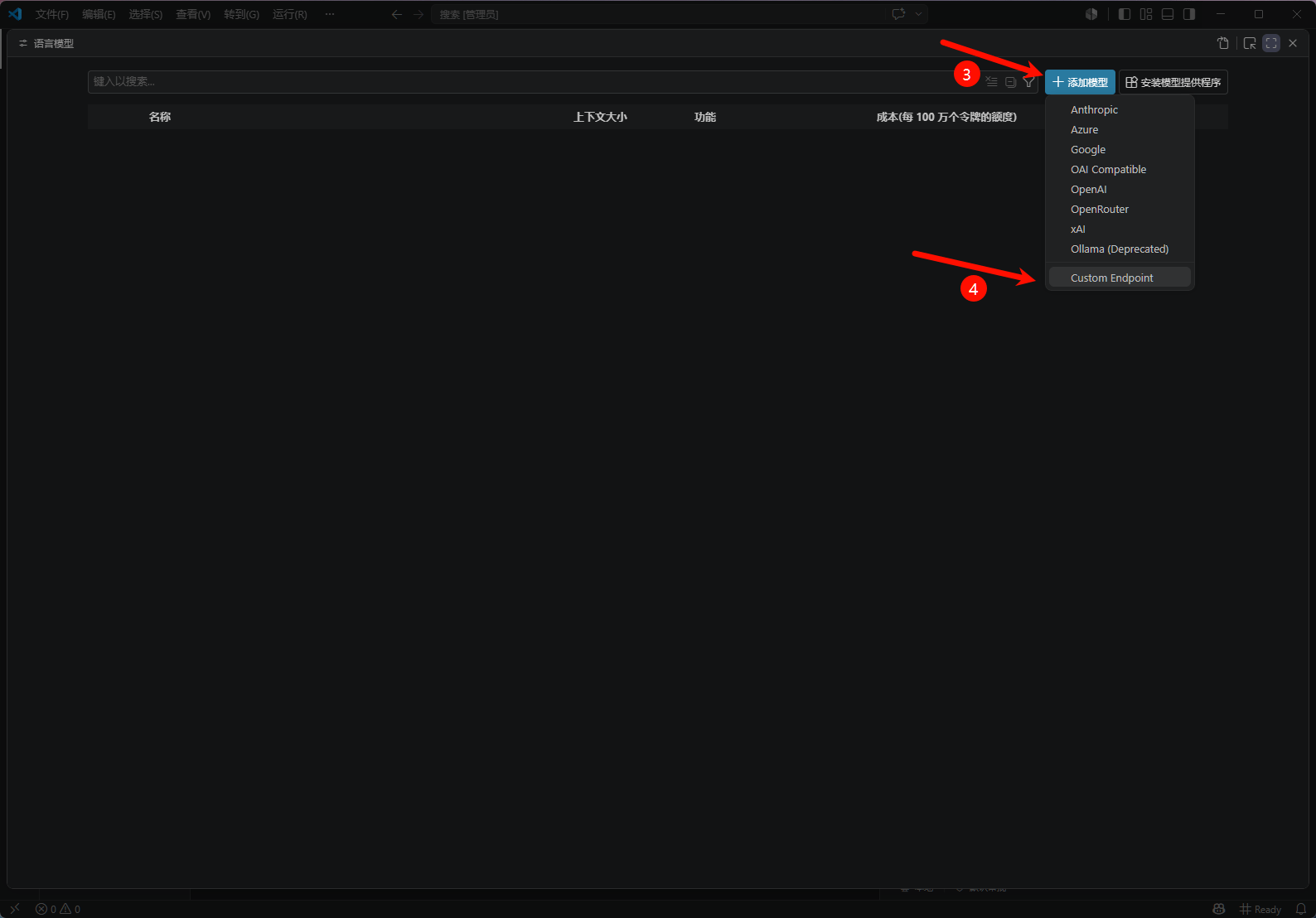
On the Language Models management page, click "Add Model" and choose **Custom Endpoint** from the dropdown.
### Step 2: Add a Custom Endpoint model
On the Language Models management page, click "Add Model" and choose **Custom Endpoint** from the dropdown.
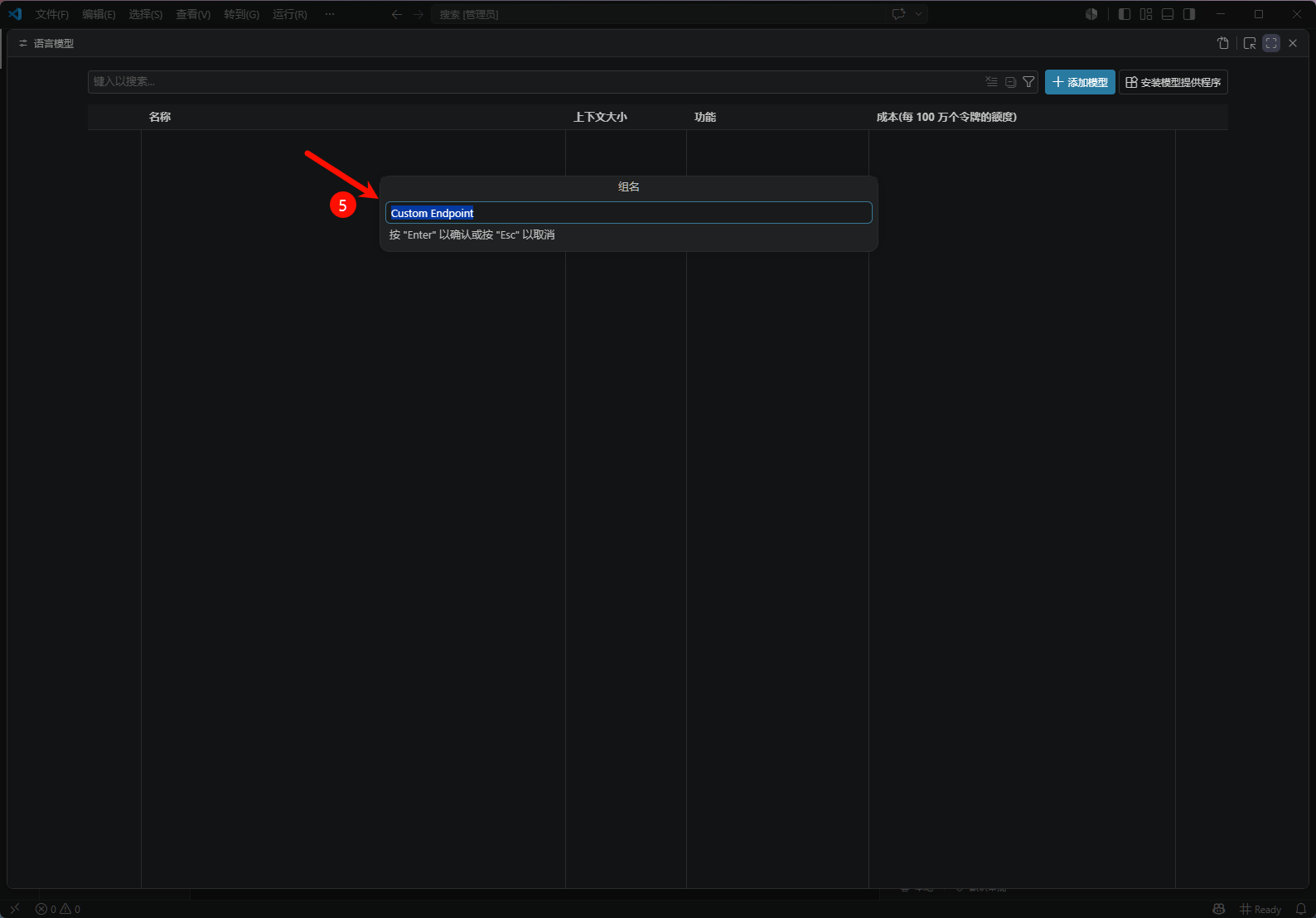
 In the naming dialog, give the endpoint a name (you can keep the default `Custom Endpoint`) and press Enter.
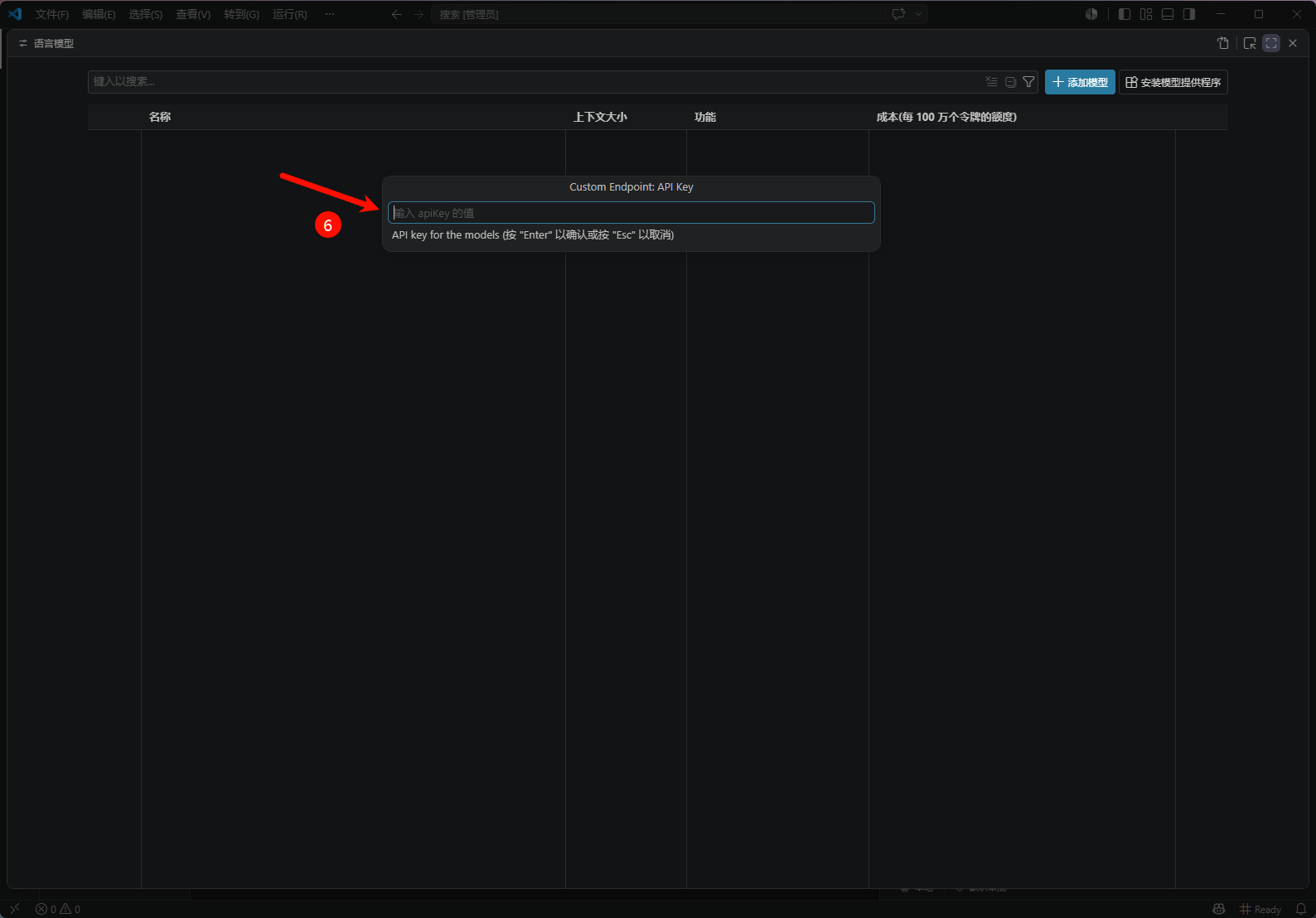
 ### Step 3: Enter your HaiToken API key
In the API Key dialog, paste your HaiToken API key and press Enter.
### Step 3: Enter your HaiToken API key
In the API Key dialog, paste your HaiToken API key and press Enter.
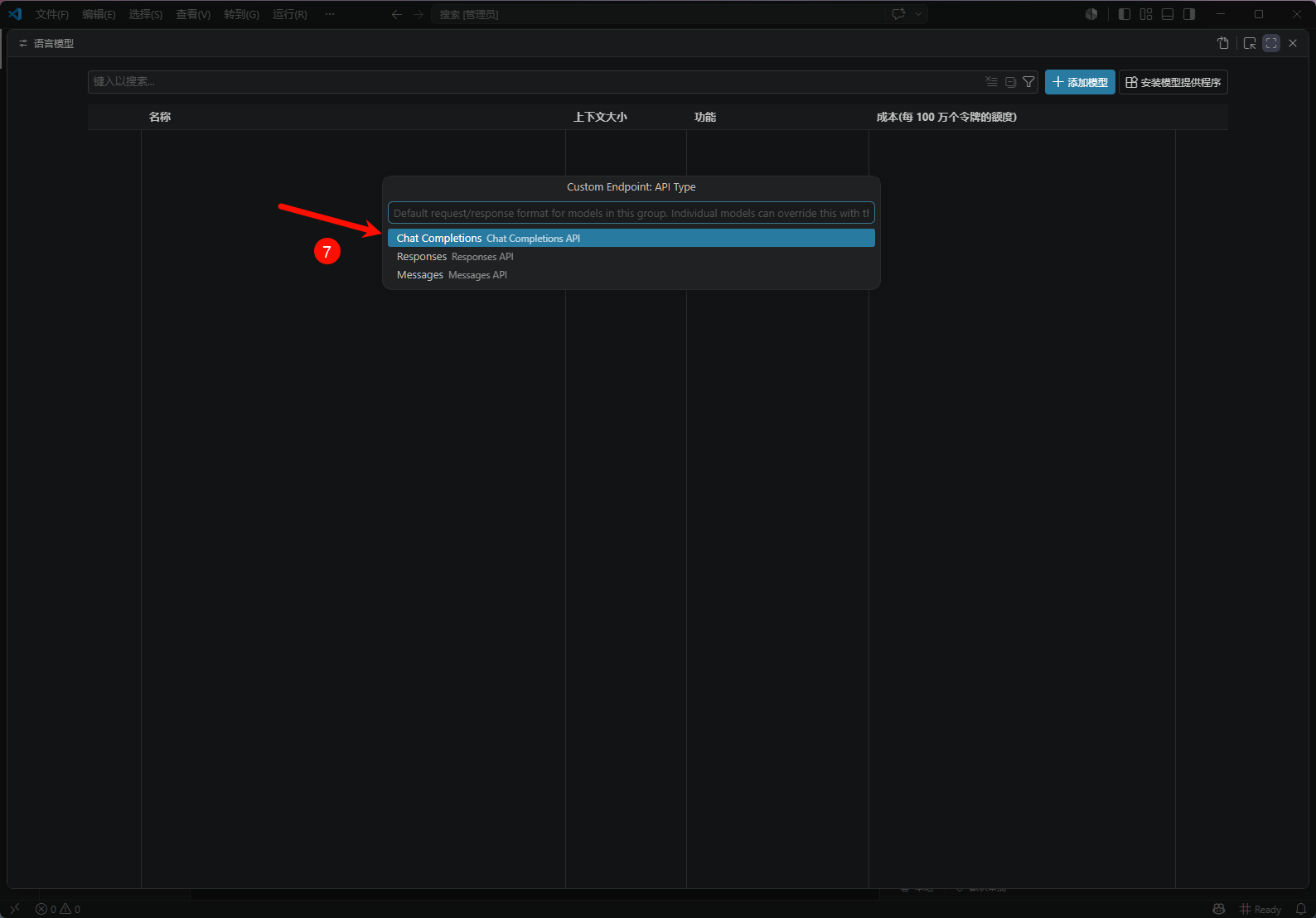
 ### Step 4: Choose the API type
In the API Type dialog, select **Chat Completions** (the OpenAI Chat Completions protocol) and press Enter.
### Step 4: Choose the API type
In the API Type dialog, select **Chat Completions** (the OpenAI Chat Completions protocol) and press Enter.
 ### Step 5: Edit the config file to set the model ID and URL
After the wizard completes, VS Code automatically opens the `chatLanguageModels.json` config file. Find the Custom Endpoint entry you just created and fill in the following fields in the `models` array:
### Step 5: Edit the config file to set the model ID and URL
After the wizard completes, VS Code automatically opens the `chatLanguageModels.json` config file. Find the Custom Endpoint entry you just created and fill in the following fields in the `models` array:
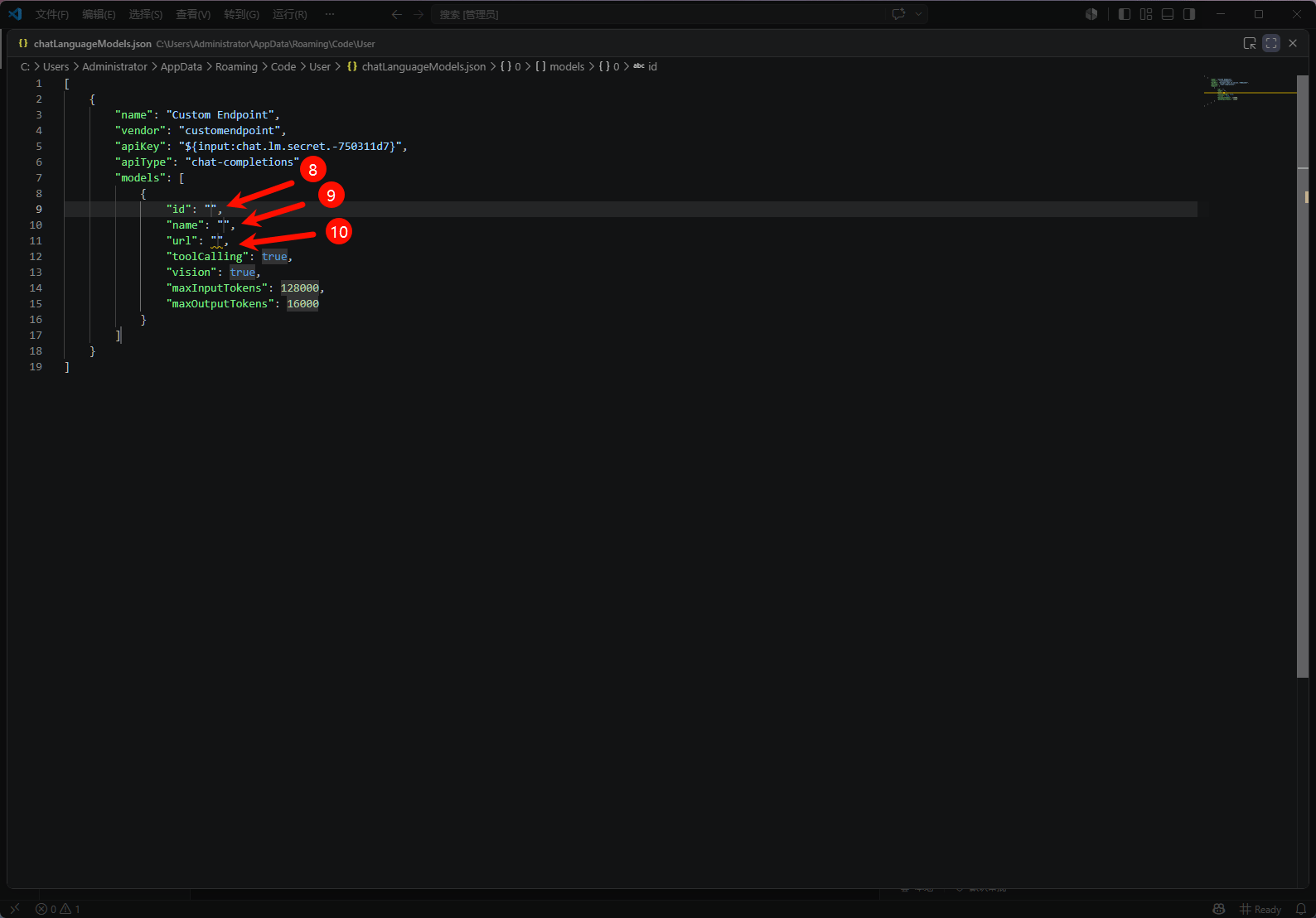 | Field | Value |
| ------ | ---------------------------------------------------------------- |
| `id` | A real HaiToken model ID, e.g. `gpt-5.4` |
| `name` | The name shown in the model picker, e.g. `gpt-5.4` |
| `url` | `https://api.haitoken.ai/v1/chat/completions` (full request URL) |
Save the file, return to the Chat panel, and the newly added HaiToken model will be available in the model picker.
## Verification
1. Open the VS Code Chat panel.
2. Select the HaiToken-backed model from the picker.
3. Send a simple prompt such as `hello`.
4. If the response returns normally, the integration works.
## Notes
| Item | Value |
| ---------------- | --------------------------------------------- |
| Base URL | `https://api.haitoken.ai/v1` |
| Full request URL | `https://api.haitoken.ai/v1/chat/completions` |
| Request path | `POST /v1/chat/completions` |
| Auth header | `Authorization: Bearer YOUR_API_KEY` |
This BYOK path covers Copilot Chat and related agent experiences. Standard code completions (inline suggestions) are outside the documented BYOK scope and may still use Copilot-managed models.
## How to switch models
Open the chat model picker in VS Code and select another HaiToken model from the list. If the model you want isn't listed, go back to **Manage Language Models** and add it following Step 2–5, or append another model object to the `models` array of an existing Custom Endpoint in `chatLanguageModels.json`.
## FAQ
| Question | Fix |
| ---------------------------------------------------------- | ----------------------------------------------------------------------------------------------------------------------------------------------------------------------------------------------------------------------------------------------------------------------------------------------------------------------- |
| No Custom Endpoint entry is visible | The available entries differ by VS Code version, Copilot plan, and update channel. If you don't see a Custom Endpoint option, try updating VS Code to the latest stable or Insiders build, or check the [Copilot BYOK docs](https://docs.github.com/en/copilot/bring-your-own-model) for your version's supported path. |
| Chat works but code completions haven't changed | That is expected. The official BYOK docs cover chat and agent features, not inline code completions. |
| `401` or authentication failed | Make sure the API key is valid and entered without extra spaces. VS Code sends it as `Authorization: Bearer YOUR_API_KEY`. |
| `model not found` | Make sure `models[].id` in `chatLanguageModels.json` exactly matches a model that HaiToken exposes. Check with `curl https://api.haitoken.ai/v1/models -H "Authorization: Bearer YOUR_API_KEY"`. |
| Configuration saved but requests don't go through HaiToken | Make sure `models[].url` is the full address `https://api.haitoken.ai/v1/chat/completions`; re-select the model in the chat picker, or restart VS Code and test again. |
## Next
* See [Get API Key](/docs/en/quickstart/get-api-key)
* See [OpenAI format API](/docs/en/api-reference/chat/openai-format)
* See [List models](/docs/en/api-reference/models/list-models)
| Field | Value |
| ------ | ---------------------------------------------------------------- |
| `id` | A real HaiToken model ID, e.g. `gpt-5.4` |
| `name` | The name shown in the model picker, e.g. `gpt-5.4` |
| `url` | `https://api.haitoken.ai/v1/chat/completions` (full request URL) |
Save the file, return to the Chat panel, and the newly added HaiToken model will be available in the model picker.
## Verification
1. Open the VS Code Chat panel.
2. Select the HaiToken-backed model from the picker.
3. Send a simple prompt such as `hello`.
4. If the response returns normally, the integration works.
## Notes
| Item | Value |
| ---------------- | --------------------------------------------- |
| Base URL | `https://api.haitoken.ai/v1` |
| Full request URL | `https://api.haitoken.ai/v1/chat/completions` |
| Request path | `POST /v1/chat/completions` |
| Auth header | `Authorization: Bearer YOUR_API_KEY` |
This BYOK path covers Copilot Chat and related agent experiences. Standard code completions (inline suggestions) are outside the documented BYOK scope and may still use Copilot-managed models.
## How to switch models
Open the chat model picker in VS Code and select another HaiToken model from the list. If the model you want isn't listed, go back to **Manage Language Models** and add it following Step 2–5, or append another model object to the `models` array of an existing Custom Endpoint in `chatLanguageModels.json`.
## FAQ
| Question | Fix |
| ---------------------------------------------------------- | ----------------------------------------------------------------------------------------------------------------------------------------------------------------------------------------------------------------------------------------------------------------------------------------------------------------------- |
| No Custom Endpoint entry is visible | The available entries differ by VS Code version, Copilot plan, and update channel. If you don't see a Custom Endpoint option, try updating VS Code to the latest stable or Insiders build, or check the [Copilot BYOK docs](https://docs.github.com/en/copilot/bring-your-own-model) for your version's supported path. |
| Chat works but code completions haven't changed | That is expected. The official BYOK docs cover chat and agent features, not inline code completions. |
| `401` or authentication failed | Make sure the API key is valid and entered without extra spaces. VS Code sends it as `Authorization: Bearer YOUR_API_KEY`. |
| `model not found` | Make sure `models[].id` in `chatLanguageModels.json` exactly matches a model that HaiToken exposes. Check with `curl https://api.haitoken.ai/v1/models -H "Authorization: Bearer YOUR_API_KEY"`. |
| Configuration saved but requests don't go through HaiToken | Make sure `models[].url` is the full address `https://api.haitoken.ai/v1/chat/completions`; re-select the model in the chat picker, or restart VS Code and test again. |
## Next
* See [Get API Key](/docs/en/quickstart/get-api-key)
* See [OpenAI format API](/docs/en/api-reference/chat/openai-format)
* See [List models](/docs/en/api-reference/models/list-models)