> ## Documentation Index
> Fetch the complete documentation index at: https://docs.haitoken.ai/llms.txt
> Use this file to discover all available pages before exploring further.
# DeepChat
> Connect DeepChat to HaiToken
DeepChat is an open-source, local-first AI desktop client that supports custom service providers compatible with `OpenAI`, `Gemini`, and `Anthropic` protocols. For HaiToken, the `OpenAI` path is usually the most stable and broadly compatible choice; if you explicitly want the Claude / Anthropic ecosystem, you can also use the `Anthropic` path.
## What you need
* A HaiToken API key
* HaiToken OpenAI-compatible address: `https://api.haitoken.ai/v1`
* HaiToken Claude / Anthropic-compatible address: `https://api.haitoken.ai`
* At least one available model ID, such as `deepseek-v4-flash`
DeepChat is configured entirely through the GUI, so the steps are essentially the same on Windows, macOS, and Linux. If menu placement or dialog layout differs slightly on your system, follow the actual UI — the API key, API address, and model ID values remain the same.
## Setup Steps
### Choose the protocol first
In DeepChat, the two common choices are:
* `OpenAI` / `OpenAI Completions`: recommended first, broader compatibility, and the main flow in this guide
* `Anthropic` / `Claude`: also common, useful when you explicitly want the Claude / Messages ecosystem
If you do not have a strong reason, start with `OpenAI`.
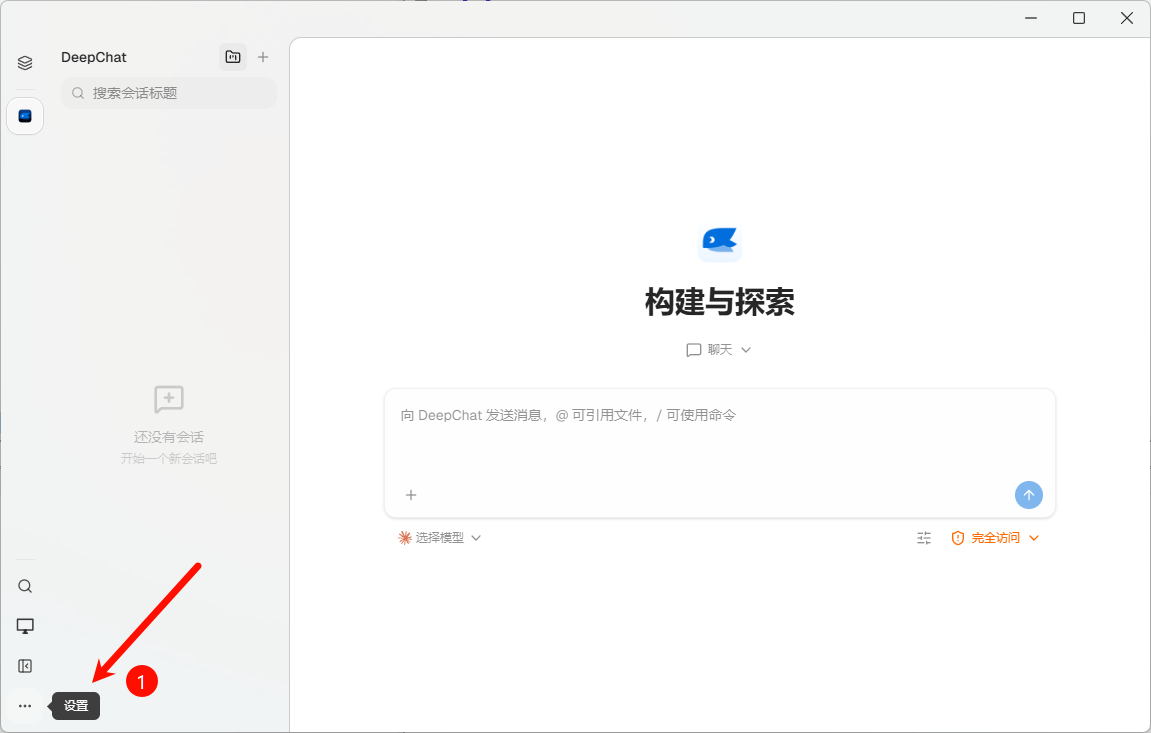
### Step 1: Open Settings
In the DeepChat main interface, click the **`...`** button at the bottom of the left sidebar to expand the menu, then select **Settings**.
 ### Step 2: Go to Provider Settings
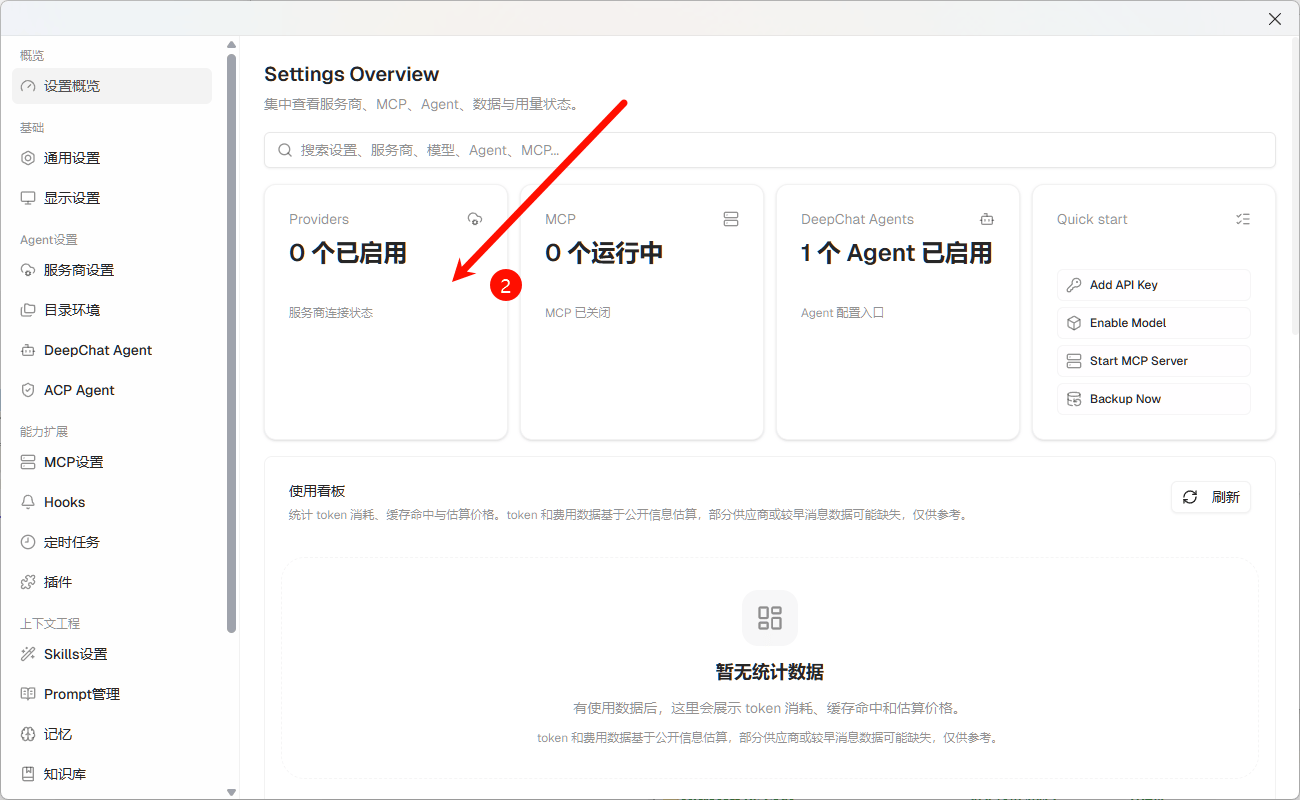
On the Settings Overview page, find the **Providers** card and click it to open the provider settings page.
### Step 2: Go to Provider Settings
On the Settings Overview page, find the **Providers** card and click it to open the provider settings page.
 ### Step 3: Add a Custom Provider
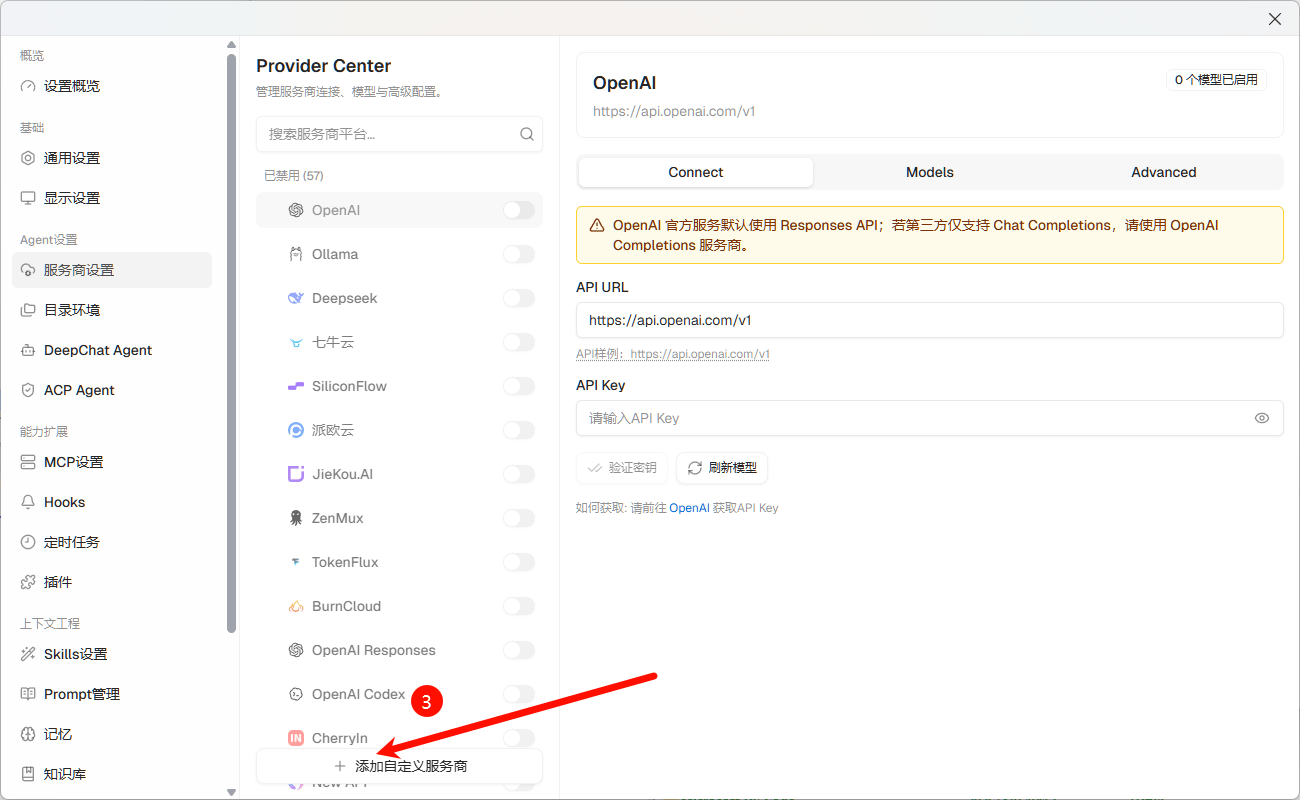
At the bottom of the provider list, click the **+ Add Custom Provider** button.
### Step 3: Add a Custom Provider
At the bottom of the provider list, click the **+ Add Custom Provider** button.
 ### Step 4: Fill in HaiToken Configuration
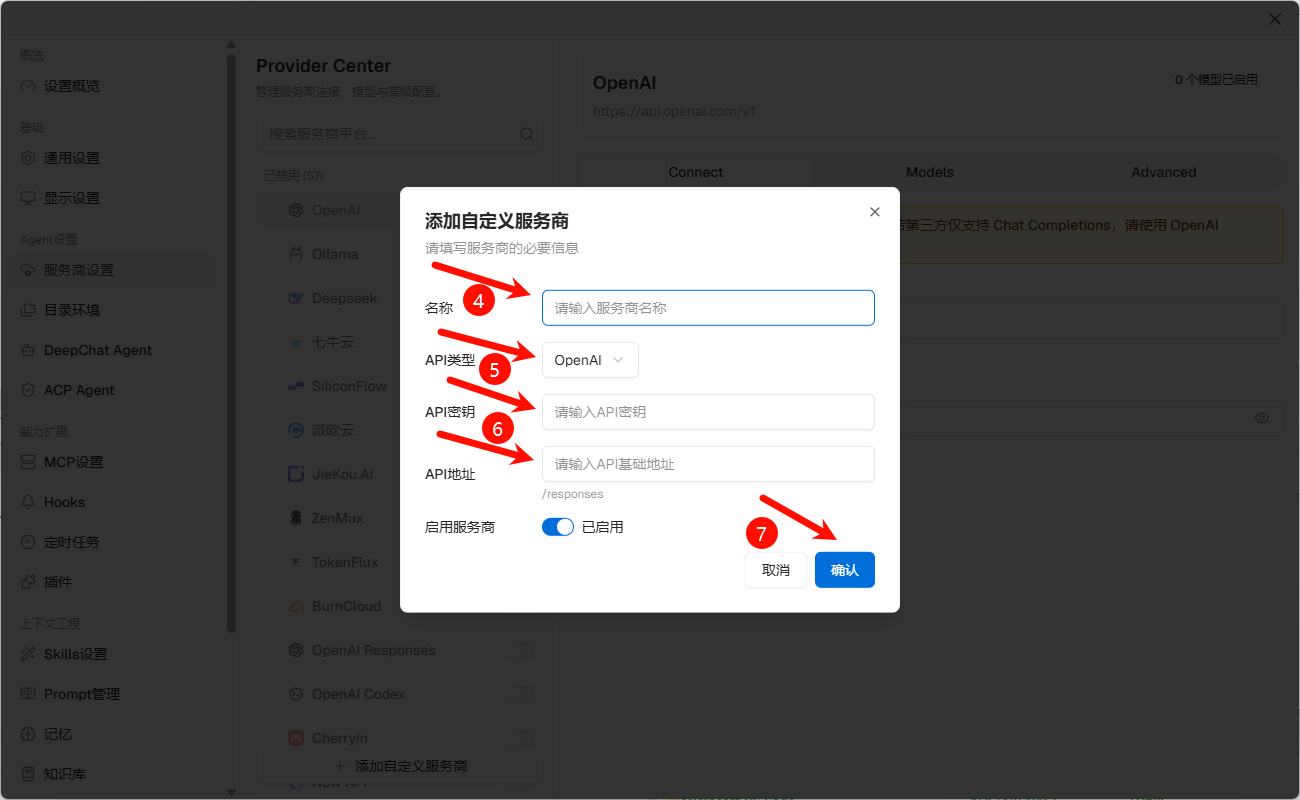
In the dialog that appears, enter the following:
| Field | Value |
| -------- | -------------------------------------------------------------------------------------------- |
| Name | `haitoken` (customizable) |
| API Type | Prefer `OpenAI`; choose `Anthropic` if you explicitly want the Claude ecosystem |
| API Key | Your HaiToken API key |
| API URL | Use `https://api.haitoken.ai/v1` for `OpenAI`; use `https://api.haitoken.ai` for `Anthropic` |
After filling in the fields, make sure the **Enable Provider** toggle at the bottom is turned on, then click **Confirm** to save.
If selecting `OpenAI` as the API type causes a `/responses` suffix to appear below the API URL field, the current configuration uses the Responses API path. HaiToken is compatible with the Chat Completions path (`/v1/chat/completions`). In this case, select a Chat Completions option (such as `OpenAI Completions`) from the API Type dropdown to ensure the correct request path.
If you choose the `Anthropic` / `Claude` path, do not enter `https://api.haitoken.ai/v1`. This path should use the Anthropic-style gateway prefix `https://api.haitoken.ai`, and the client should call `/v1/messages` through that gateway.
### Step 4: Fill in HaiToken Configuration
In the dialog that appears, enter the following:
| Field | Value |
| -------- | -------------------------------------------------------------------------------------------- |
| Name | `haitoken` (customizable) |
| API Type | Prefer `OpenAI`; choose `Anthropic` if you explicitly want the Claude ecosystem |
| API Key | Your HaiToken API key |
| API URL | Use `https://api.haitoken.ai/v1` for `OpenAI`; use `https://api.haitoken.ai` for `Anthropic` |
After filling in the fields, make sure the **Enable Provider** toggle at the bottom is turned on, then click **Confirm** to save.
If selecting `OpenAI` as the API type causes a `/responses` suffix to appear below the API URL field, the current configuration uses the Responses API path. HaiToken is compatible with the Chat Completions path (`/v1/chat/completions`). In this case, select a Chat Completions option (such as `OpenAI Completions`) from the API Type dropdown to ensure the correct request path.
If you choose the `Anthropic` / `Claude` path, do not enter `https://api.haitoken.ai/v1`. This path should use the Anthropic-style gateway prefix `https://api.haitoken.ai`, and the client should call `/v1/messages` through that gateway.
 ### Step 5: Refresh and Enable Models
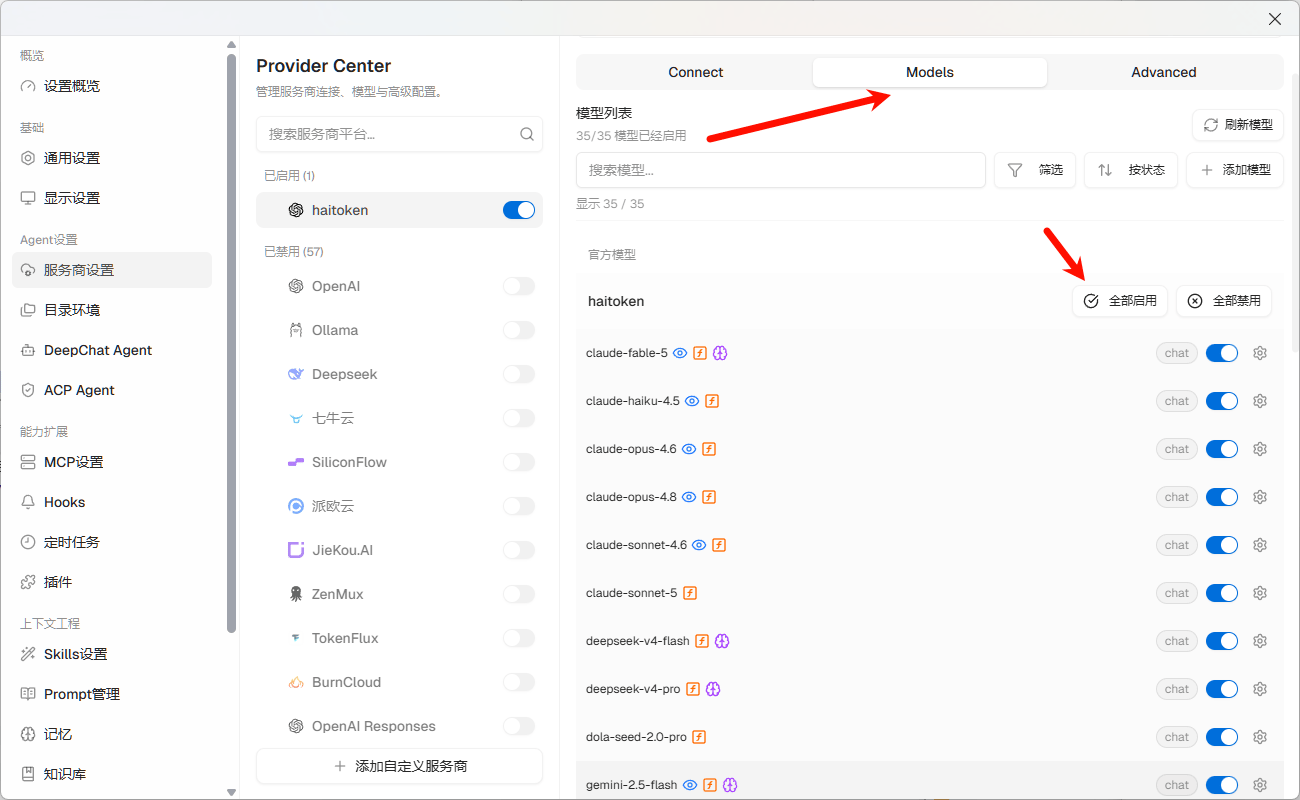
After saving, switch to the **Models** tab in the provider detail page and click **Refresh Models** to fetch the available HaiToken model list. Once loaded, click **Enable All** or selectively enable specific models.
### Step 5: Refresh and Enable Models
After saving, switch to the **Models** tab in the provider detail page and click **Refresh Models** to fetch the available HaiToken model list. Once loaded, click **Enable All** or selectively enable specific models.
 ### Step 6: Return to Chat and Test
Go back to the chat view, select the newly configured HaiToken model from the model picker at the bottom, and send a simple message (such as `hello`) to verify connectivity.
## Notes
| Item | Details |
| ---------------------- | --------------------------------------------------- |
| Recommended protocol | OpenAI Chat Completions |
| Common request path | `POST /v1/chat/completions` |
| Claude-compatible path | `POST /v1/messages` |
| Auth header | `Authorization: Bearer YOUR_API_KEY` |
| Model switching | Use the model picker in the DeepChat chat interface |
If you need to configure advanced parameters such as temperature, max output length, or system prompt, keep the defaults for your first test and verify connectivity first.
## FAQ
| Question | Solution |
| -------------------------------------------------- | --------------------------------------------------------------------------------------------------------------------------------------------------------------------------------------------------------------- |
| Model list loads successfully but invocation fails | Check whether the API type is using the Responses API (URL suffix shows `/responses`). HaiToken is compatible with Chat Completions — select `OpenAI Completions` or a similar option in the API Type dropdown. |
| Endpoint is reported as invalid | Make sure the API URL is `https://api.haitoken.ai/v1` without appending `/chat/completions` — DeepChat appends the path automatically. |
| I want to use the Claude / Anthropic mode | Switch the API type to `Anthropic` or the corresponding Claude mode, and change the API URL to `https://api.haitoken.ai` without `/v1`. This path should call `POST /v1/messages`. |
| `401` or authentication failed | Make sure the API key is valid and that DeepChat is using OpenAI-compatible Bearer authentication. |
| `model not found` | Make sure the model ID in DeepChat exactly matches a model ID exposed by HaiToken. |
| Model list is empty after refresh | Check that the API key is correct, the provider is enabled, and the network can reach `https://api.haitoken.ai/v1`. |
## Next
* See [Get API Key](/docs/en/quickstart/get-api-key)
* See [OpenAI format API](/docs/en/api-reference/chat/openai-format)
* See [List models](/docs/en/api-reference/models/list-models)
### Step 6: Return to Chat and Test
Go back to the chat view, select the newly configured HaiToken model from the model picker at the bottom, and send a simple message (such as `hello`) to verify connectivity.
## Notes
| Item | Details |
| ---------------------- | --------------------------------------------------- |
| Recommended protocol | OpenAI Chat Completions |
| Common request path | `POST /v1/chat/completions` |
| Claude-compatible path | `POST /v1/messages` |
| Auth header | `Authorization: Bearer YOUR_API_KEY` |
| Model switching | Use the model picker in the DeepChat chat interface |
If you need to configure advanced parameters such as temperature, max output length, or system prompt, keep the defaults for your first test and verify connectivity first.
## FAQ
| Question | Solution |
| -------------------------------------------------- | --------------------------------------------------------------------------------------------------------------------------------------------------------------------------------------------------------------- |
| Model list loads successfully but invocation fails | Check whether the API type is using the Responses API (URL suffix shows `/responses`). HaiToken is compatible with Chat Completions — select `OpenAI Completions` or a similar option in the API Type dropdown. |
| Endpoint is reported as invalid | Make sure the API URL is `https://api.haitoken.ai/v1` without appending `/chat/completions` — DeepChat appends the path automatically. |
| I want to use the Claude / Anthropic mode | Switch the API type to `Anthropic` or the corresponding Claude mode, and change the API URL to `https://api.haitoken.ai` without `/v1`. This path should call `POST /v1/messages`. |
| `401` or authentication failed | Make sure the API key is valid and that DeepChat is using OpenAI-compatible Bearer authentication. |
| `model not found` | Make sure the model ID in DeepChat exactly matches a model ID exposed by HaiToken. |
| Model list is empty after refresh | Check that the API key is correct, the provider is enabled, and the network can reach `https://api.haitoken.ai/v1`. |
## Next
* See [Get API Key](/docs/en/quickstart/get-api-key)
* See [OpenAI format API](/docs/en/api-reference/chat/openai-format)
* See [List models](/docs/en/api-reference/models/list-models)